
Download Lightscreen – Free, Secure, Minimalistic Screenshot Tool for Windows, Mac & Linux
Lightscreen is a lightweight, free, and open-source screenshot tool designed for Windows, Mac, and Linux users who value speed, simplicity, and privacy. Developed by independent creator Christian Kaiser (aka ckaiser), Lightscreen offers a clean, taskbar-like interface that puts all essential capture functions at your fingertips. Unlike bloated alternatives, Lightscreen focuses on core functionality without sacrificing customization.
Whether you're capturing your entire screen, a specific window, or a custom region, the process is intuitive and instant. With no installation required (portable version available), it’s perfect for users who need a secure, fast, and reliable screenshot tool on the go. Its minimal design ensures no distractions, while built-in settings allow for filename templates, timestamps, and customizable hotkeys.
While it lacks an in-app editor, its streamlined workflow makes it ideal for quick captures. Download Lightscreen today and experience a smarter way to take screenshots.
Key Features of Lightscreen
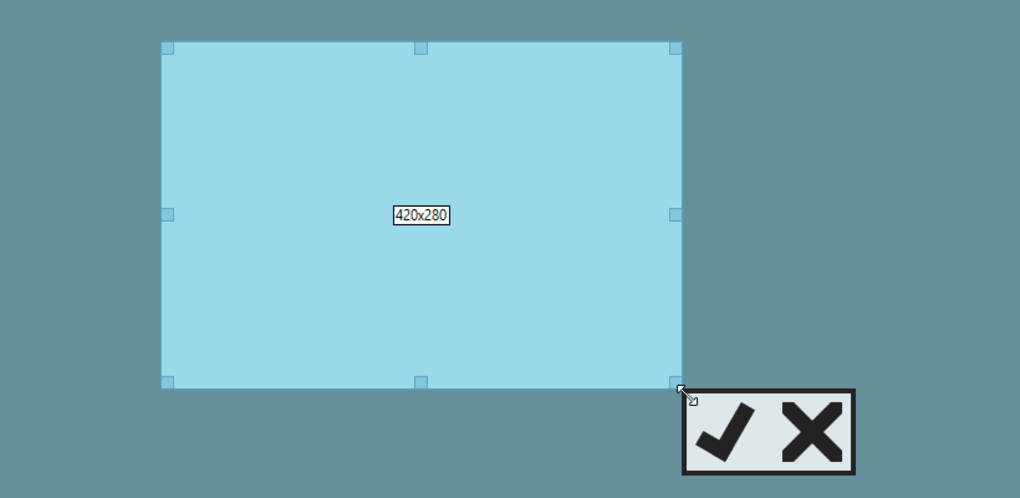
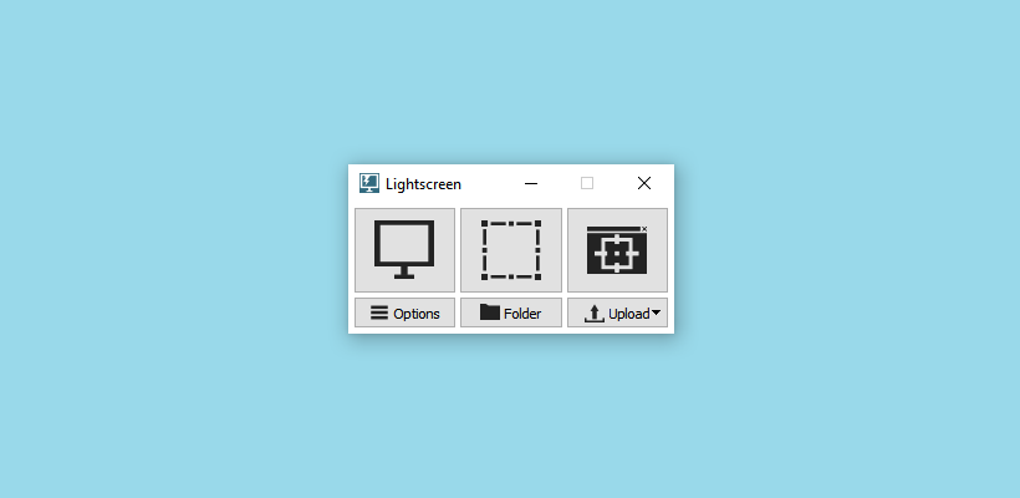
What sets Lightscreen apart from other screenshot tools is its commitment to minimalism without compromising functionality. The app’s floating taskbar interface is not only visually clean but also highly efficient. Once launched, you’re immediately presented with three primary capture modes: full-screen capture, region selection, and window capture. Each function is clearly labeled and accessible with a single click. The region selection tool is particularly intuitive—after initiating the capture, you can drag and adjust the selection box to fine-tune your area, making it ideal for precise screenshots.
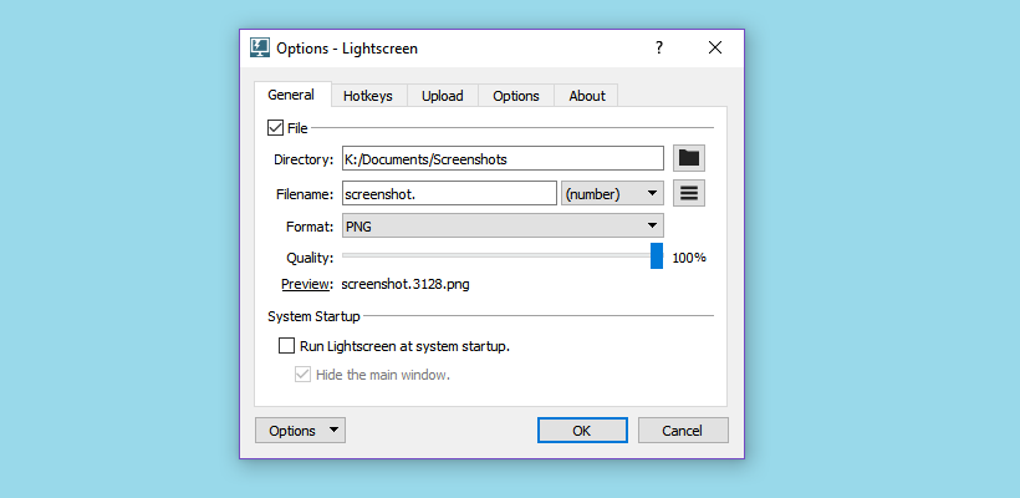
Another standout feature is its seamless integration with the system tray. You can access all capture options, upload settings, and default save folders directly from the icon in your taskbar. By default, screenshots are saved in the Documents > Screenshots directory, but you can easily change this in the settings. The customization options are robust for a tool of this size: you can set custom filename formats, enable timestamps, and assign keyboard shortcuts for each capture type. These hotkeys significantly speed up workflow, especially for frequent users.
Lightscreen also supports multiple platforms—Windows, Mac, and Linux—making it a versatile choice for cross-device users. Its portable version allows you to run it from a USB drive without installation, perfect for shared or temporary workstations. All data stays local, ensuring your screenshots remain private and secure. While it doesn’t include an image editor, the focus on speed and simplicity means fewer delays and less clutter. For users who prioritize efficiency over advanced editing, Lightscreen delivers a flawless experience.
How to Install and Use Lightscreen on Your PC
Getting started with Lightscreen is incredibly simple, thanks to its lightweight design and portable nature. If you’re using Windows, head to the official GitHub repository or trusted download site, and download the latest version. The file is typically a ZIP archive. Extract it to your preferred folder—such as Downloads or Apps—and run the Lightscreen.exe file. No installation is required, making it ideal for users who prefer portable software or work on restricted machines.
Upon launching, the app appears as a small, floating taskbar at the top or side of your screen. It contains three main buttons: full-screen capture, region capture, and window capture. Clicking any of these activates the respective mode instantly.
For region capture, simply click and drag to select the area. You can adjust the selection after the initial capture by dragging the edges of the box. Once satisfied, press Enter or click the confirmation button to save.
After capture, the screenshot is automatically saved to your default folder (usually Documents > Screenshots), but you can change this in the settings. To access advanced options, right-click the system tray icon. From there, you can modify hotkeys, enable timestamps, or adjust filename formatting.
You can also upload screenshots directly to image hosting services if configured. For Mac and Linux users, the process is similar—download the appropriate version, extract, and run the executable. The app is designed to be cross-platform, ensuring consistent performance and interface across devices.
Compatibility and System Requirements
Lightscreen is engineered to be lightweight and compatible with a wide range of systems. It supports the latest versions of Windows (10 and 11), macOS (10.14 and later), and Linux distributions with standard desktop environments like GNOME, KDE, and XFCE. The app is built using Electron, ensuring stable performance across platforms without requiring additional dependencies.
System requirements are minimal. On Windows, you’ll need at least 1 GB of RAM and 50 MB of free disk space. The Mac version runs smoothly on Intel and Apple Silicon Macs, while the Linux version is available as a .deb or .AppImage package. No administrator privileges are required for the portable version, making it perfect for use in schools, offices, or public computers.
One of the biggest advantages of Lightscreen is its portability. You can copy the entire folder to a USB drive and run it from any device without leaving traces. This is especially useful for remote work, tech support, or presentations.
The app is also open-source, meaning its code is publicly available for review, ensuring transparency and security. No telemetry, no ads, no data collection—just pure, focused functionality. Whether you’re a student, professional, or casual user, Lightscreen adapts to your workflow without demanding system resources.
Pros and Cons of Using Lightscreen
- Pros:
- Free and open-source with no hidden costs or ads
- Minimalist, distraction-free interface
- Portable version available—no installation needed
- Supports Windows, Mac, and Linux
- Fast, instant capture with customizable hotkeys
- Lightweight with low system resource usage
- Secure—no data collection or telemetry
- Customizable filename templates and timestamps
- Cons:
- Lacks built-in image editor for quick edits
- No built-in annotation tools (e.g., arrows, text)
- Interface may feel too simple for power users
- Limited upload options without third-party setup
- No automatic cloud sync or sharing integration
Frequently Asked Questions (FAQ)
-
Is Lightscreen free to download and use?
Yes, Lightscreen is completely free and open-source. You can download, use, and modify the software without any cost or restrictions. The developer, Christian Kaiser, maintains it as a passion project, ensuring it remains ad-free and privacy-focused.
-
Can I run Lightscreen without installing it?
Absolutely. Lightscreen offers a portable version that runs directly from a USB drive or any folder. Simply extract the ZIP file and launch the executable. No installation or registry changes are required—perfect for temporary or shared computers.
-
Does Lightscreen work on Mac and Linux?
Yes, Lightscreen is fully compatible with macOS (10.14+) and Linux (Debian/Ubuntu, Fedora, etc.). The app is built with cross-platform support in mind, ensuring consistent performance across all major operating systems.
-
Can I edit my screenshots after taking them?
Lightscreen does not include an in-app image editor. However, you can quickly open captured screenshots in your default image viewer or editor (like Paint, Preview, or GIMP) for basic edits. The app focuses on fast capture, not editing.
-
How do I change the default save location for screenshots?
Go to the system tray icon, click "Settings," and navigate to the "Save" tab. Here, you can browse and select a new folder for your screenshots. This change applies globally across all capture modes.
Conclusion: Why You Should Download Lightscreen Today
If you're looking for a fast, secure, and hassle-free screenshot tool, Lightscreen is an excellent choice. Its minimalist design, instant access to capture modes, and cross-platform support make it ideal for students, professionals, and casual users alike. While it doesn’t include advanced editing features, its focus on speed and simplicity delivers a superior user experience for those who value efficiency.
With no installation required, full privacy, and a growing community of satisfied users, Lightscreen stands out in a crowded market. Whether you're capturing a bug report, sharing a tutorial, or saving a memorable moment, this tool gets the job done—without the clutter.
Download Lightscreen now and experience the power of minimalism in action. It’s free, secure, and ready to use in seconds.







